
- Enter all pays up to 30 June (pays recorded with a July payment date which include June pay dates aren't included in the finalised year)
- Fix any incorrect pays
- Check that pay runs sent during the payroll year have been accepted by the ATO.
- Note that rejected reports retain a Rejected status. This is OK if reports since the rejected one have been accepted by the ATO.
What happens when I finalise?
- You'll start by checking some payroll reports to make sure you've reported everything correctly to the ATO.
- An update event is sent to the ATO to let them know you're finalising your payroll year.
- The status of the employee's income statement in myGov changes to Tax ready so they can pre-fill and lodge their tax return.
If you're stuck or feeling unsure, try our free eLearning to discover everything you need to know about finalising your payroll information.
Before processing the first pay of the new payroll year, you should confirm that the amounts you've paid your employees in MYOB match the amounts that are listed against each employee's record. This will identify if any amounts have been incorrectly entered against an employee's pay history instead of being paid via payroll.
You'll do this by running and comparing two reports in MYOB.
Here's a quick overview:
- Go to the Reporting menu > Reports.
- Click the Payroll tab.
-
Click to run the Payroll register and Payroll activity reports.
Make it easy to compare these reports Right-click each report and choose to Open link in new tab to display both reports on separate browser tabs.
- Set the date range of each report as the entire payroll year, e.g. 1 July 2021 - 30 June 2022.
- Compare the totals at the bottom of each report. If they match, great! You're ready to continue with your finalisation process as described in the next task.
If the reports don't match
This means an employee's pay history has been manually changed in their contact record. This might have occurred if you started using payroll part-way through the payroll year, and you've entered your employees' year-to-date payroll totals.
Otherwise, it means an employee's pay history has been manually updated in error – usually in an attempt to fix their pay amounts. Instead, you should only ever fix a pay by changing or deleting the pay.
Providing you have not processed the first pay for the new payroll year, you'll need to identify which employee this impacts, then fix their pay history.
Identify the affected employee
- Compare the above two reports again, and find the employee whose totals on the reports don't match. For example, check the Salary and wages columns in both reports to see where the amounts differ for an employee. Then move to the Deductions column and so on.
- Click the dropdown
 arrow for that employee on both reports. This shows a breakdown of the amounts paid to the employee per pay item.
 - Identify the affected pay item. This will help you identify what has likely been changed in the employee's pay history.
- You can then update the employee's pay history to undo whatever manual change has been made (Payroll menu > Employees > click to open the employee's contact record > Payroll details tab > Pay history tab).
- Once you've fixed the employee's pay history, send an update event to the ATO.
- Once the update event has been accepted by the ATO (check the report status to find out), run the above reports again to confirm the totals match.
Need help fixing an employee's pay history? We recommend speaking with your accounting advisor.
As part of processing an employee's final pay, you need to notify the ATO. This lets the ATO know the employee's termination date and any ETP components in their final pay.
You might have completed these steps when you processed the employee's final pay. If you didn't, complete these steps for each employee you terminated in the payroll year.
The steps for notifying the ATO of a terminated employee are slightly different for STP Phase 1 and STP Phase 2 – so choose the steps that apply to you.
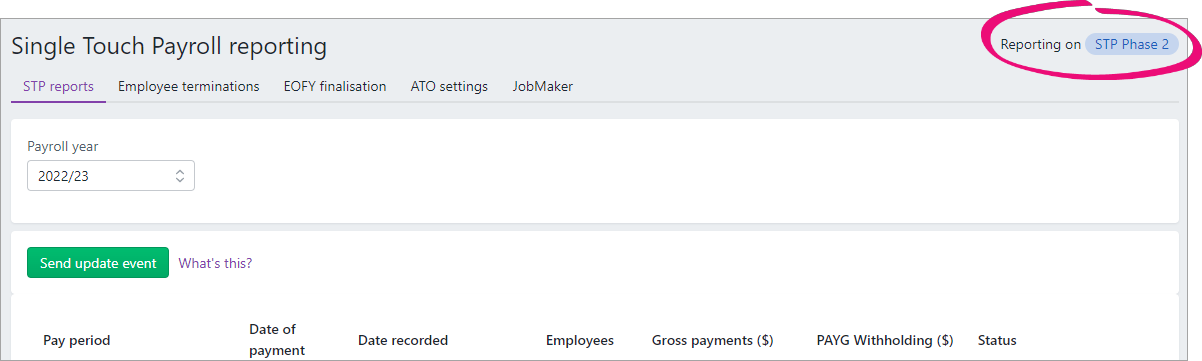
Am I reporting via STP Phase 2?
You can check in the STP reporting centre (Payroll menu > Single Touch Payroll reporting). How do I get ready for STP Phase 2?
To notify the ATO of terminated employees
- Go to the Payroll menu and choose Single Touch Payroll reporting.
- Click the Employee terminations tab.
- Choose the applicable Payroll year and click Add Termination.
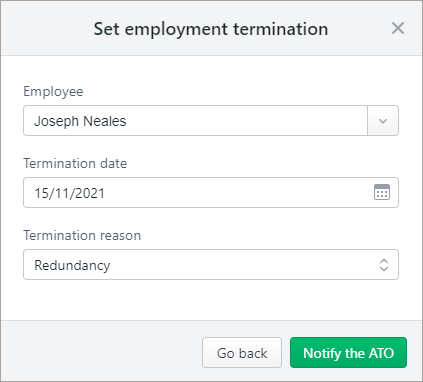
- Choose the Employee who was terminated.
- Choose the Termination date and Termination reason and click Notify the ATO.
- When prompted to send your payroll information to the ATO, enter your details and click Send.
This declaration is processed in the same way other Single Touch Payroll reports are. They must have a status of Accepted in the payroll reporting centre before you can finalise your STP information.
To finalise Single Touch Payroll payroll information
Finalising your Single Touch Payroll information is done in just a few clicks.
- Go to the Payroll menu and choose Single Touch Payroll reporting.
- Click the EOFY finalisation tab and choose the Payroll year you're finalising.
-
If you need to report fringe benefits for an employee (what is this?):
If you're on STP Phase 1 - Click the ellipsis
 button for the employee and choose Enter RFBA.
 - Enter in both the:
-
Reportable fringe benefits amount $
-
Reportable fringe benefits amount exempt from FBT under section 57A $
The combined value of these must be above the thresholds set by the ATO.
-
- Click Add amounts.
If you're on STP Phase 2 - Select the option Enable RFBA at the top of the screen. Columns for RFBA ($) and Section 57A ($) appear.
- For each employee with fringe benefit amounts, enter the reportable values. The combined value of these must be above the thresholds set by the ATO.
- RFBA ($) - these are reportable fringe benefit amounts
- Section 57A ($) - these are fringe benefit amounts exempt from FBT under section 57A (see the FAQ below for details).
- Click the ellipsis
- Select each employee you want to finalise, then
- if you're on STP Phase 1, click Set as Final
- if you're on STP Phase 2, click Finalise and notify the ATO.
- When prompted to send your payroll information to the ATO, enter your details and click Send.
When you finalise, an update event is sent to the ATO containing the year-to-date payroll totals for the finalised employees. You can see this update event listed with your other payroll submissions on the STP reports tab. How to view your submitted payroll reports.
What's next?
Each employee that has been finalised will have the Final indicator ticked in the payroll reporting centre. You can let these employees know that they can now sign in to myGov to complete their tax returns. That's right—you don't need to complete payment summaries for them!.
You're also ready to start processing pays from 1 July for the new payroll year. The latest tax tables will automatically apply so you don't have to worry about downloading them. Also learn about the new option in MYOB to keep you compliant with super guarantee rate increases.
Comments
0 comments
Please sign in to leave a comment.