
Your business settings, like your organisation's name, contact details and financial year info are stored on the Business settings page. Some of these details will appear on your business documents, including invoices, statements and, if you're in Australia—your pay slips.
This is also where you can choose your GST settings, including whether or not you're registered for GST.
You might have entered some business details when you started using MYOB. If you need to add more details or change what's there, a user with Administrator access can do it at any time.
To enter or edit your business settings
-
Click your business name and choose Business settings.
-
On the Business details tab, enter your business, industry and contact details.
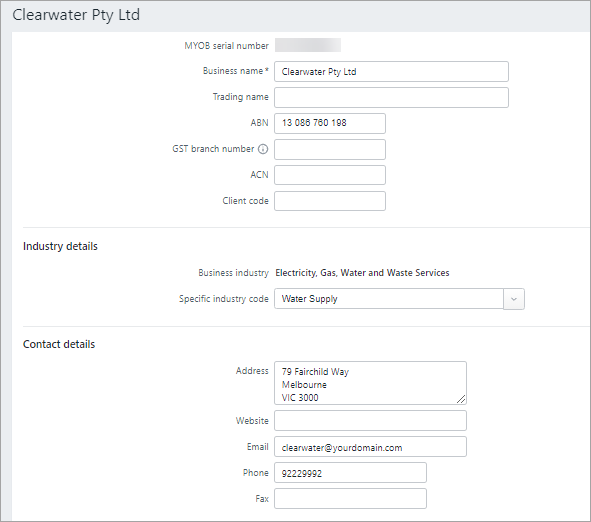
What is the Client code?
If you export information for your accountant, check if they require your Client code to be entered here.
-
Check your financial year and GST settings as described below.
-
When you're done, click Save.
Your business's financial year settings relate to the fiscal calendar used by your business. You'll also have an Opening balance date which is when you'll start entering transactions in MYOB.
This information is typically set up when you start using MYOB.
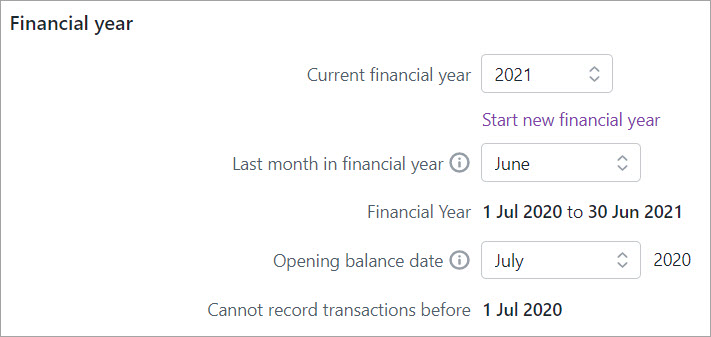
These details can be changed up until you start a new financial year. If you've started a new financial year and need to enter historical sales and purchases (which date from before your Opening balance date), see Entering historical sales and purchases.
To check or change your financial year settings
-
Click your business name and choose Business settings.
-
On the Business details tab, confirm or update your Financial year details. These details can only be changed until the first time you start a new financial year.
Need to start a new financial year? See our end of year topics for details (Australia | New Zealand).Changing the Current financial year or Last month in the financial year can affect your business's reporting periods. Also, changing the Opening balance date may affect any account opening balances you've entered. So if you're not sure which dates to choose, check with an accounting advisor. - In the Lock date section you can set a date to prevent transactions before this date being edited or deleted. For more details see Locking transactions.
-
When you're done, click Save.
Comments
0 comments
Please sign in to leave a comment.